Portal User Add New
About Adding a New Portal User:
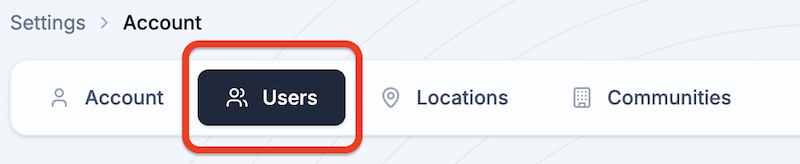
Adding a new user can be done by an account administrator in the “Settings” section. Within “Settings”, administrators will use the “Users” section to add new users. This section can also be used to view the total number of users as well as editing current users.
Please note: The number of users you can add is based on your membership level. For up to date information regarding limits of users for each membership level, check your membership level in the Account Settings section.
How to Add a New Portal User:
Step 1 - Access the User Section
- Click on “Settings” in the toolbar at the top of the page.

- Click on the “Users” tab at the top of the page.
Step 2 - Add a New Portal User
- Click “Create” on the top right corner of the “Portal Users” section.
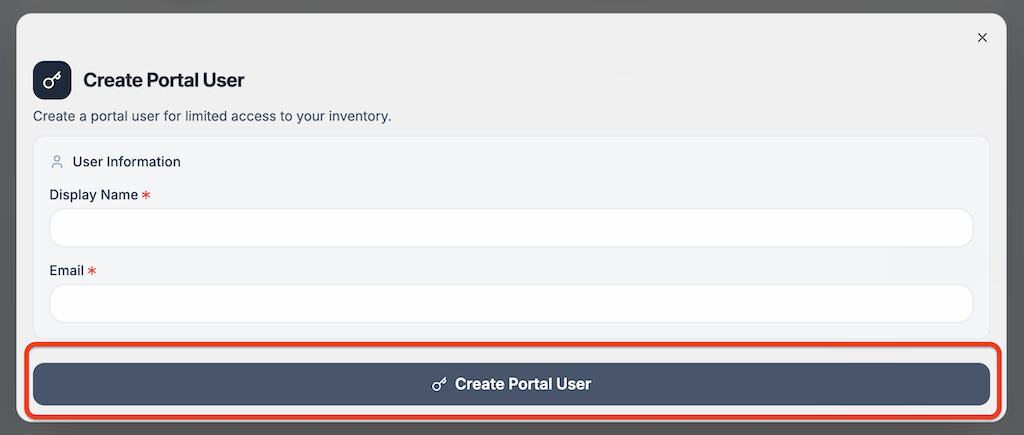
- Fill in the Display Name and email address of the new user.
- Click the blue “Create Portal User” button at the bottom of the screen.