Communities - Remove
Access the Communities Section
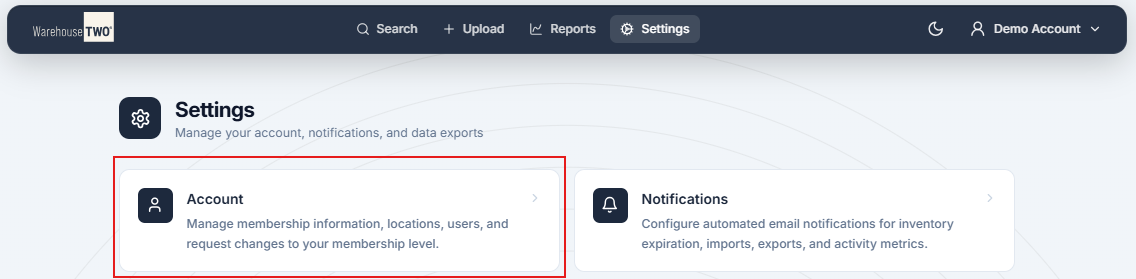
- Click on “Settings” in the toolbar at the top of the page.

- Click on “Account” to load the account settings.
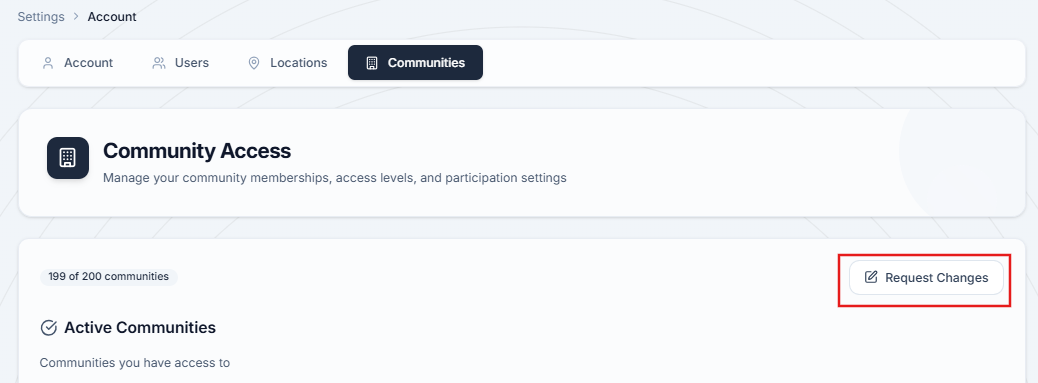
- Click on “Communities” to load the community settings.

Removing Closed Communities
- Click on “Request Changes”
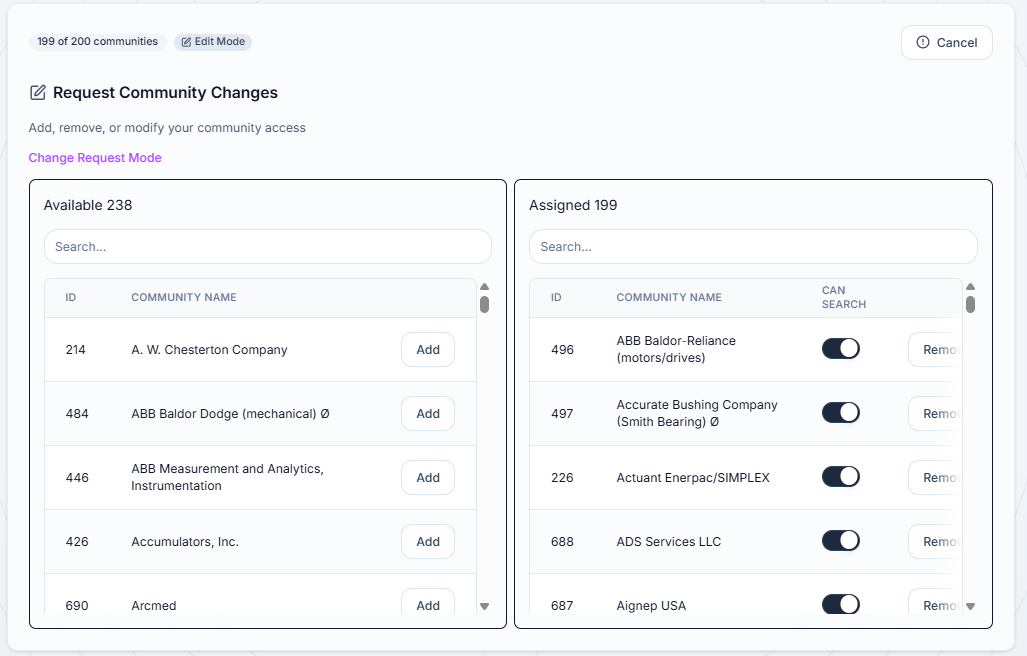
- Use the search bar or scroll through the list of your current communities to find the ones that you would like to remove.
-
Click “Remove” next to the community you would like to leave.
-
Once you have clicked “Remove” next to all of the communities you would like to leave, click the “Review and Submit” button in the top right corner.
-
Review the list of communities selected in the pop-up.
-
Click “Submit Request” to submit this change for WarehouseTWO administrator to review the requested changes.
-
Click “Discard” to cancel and remove the selected communities.

Removing Open Communities
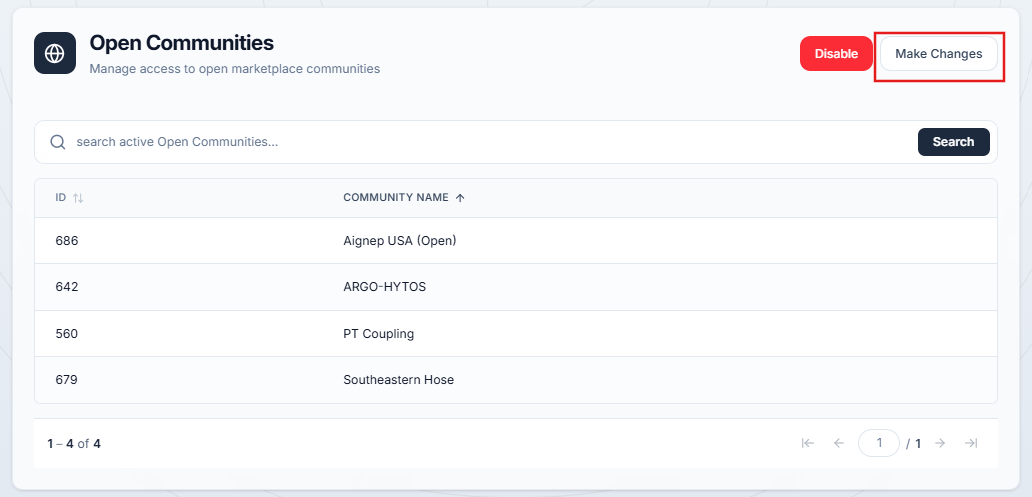
- Scroll down to the “Open Communities” section and click the “Make Changes” button.
- Use the search bar or scroll through the list of your current communities to find the ones that you would like to leave.
- The list on the left will show all communities that are available to join, while the list on the right will show all communities that you are currently a member of.
- Click “Remove” next to the community you would like to leave.
- Once you have clicked “Remove” next to all of the communities you would like to leave, click the “Review and Submit” button in the top right corner.
- Review the list of communities selected in the pop-up.

- Click “Commit Changes” to submit leave these open communities.
- Click “Discard” to cancel and remove the selected communities.